Most copier paper jams trace back to a small set of fixable problems – paper condition, worn mechanical parts, or settings mismatches. Knowing which one applies to your machine usually stops recurring jams before they require service calls.


Why Does My Copier Jam? 7 Common Causes and Fixes
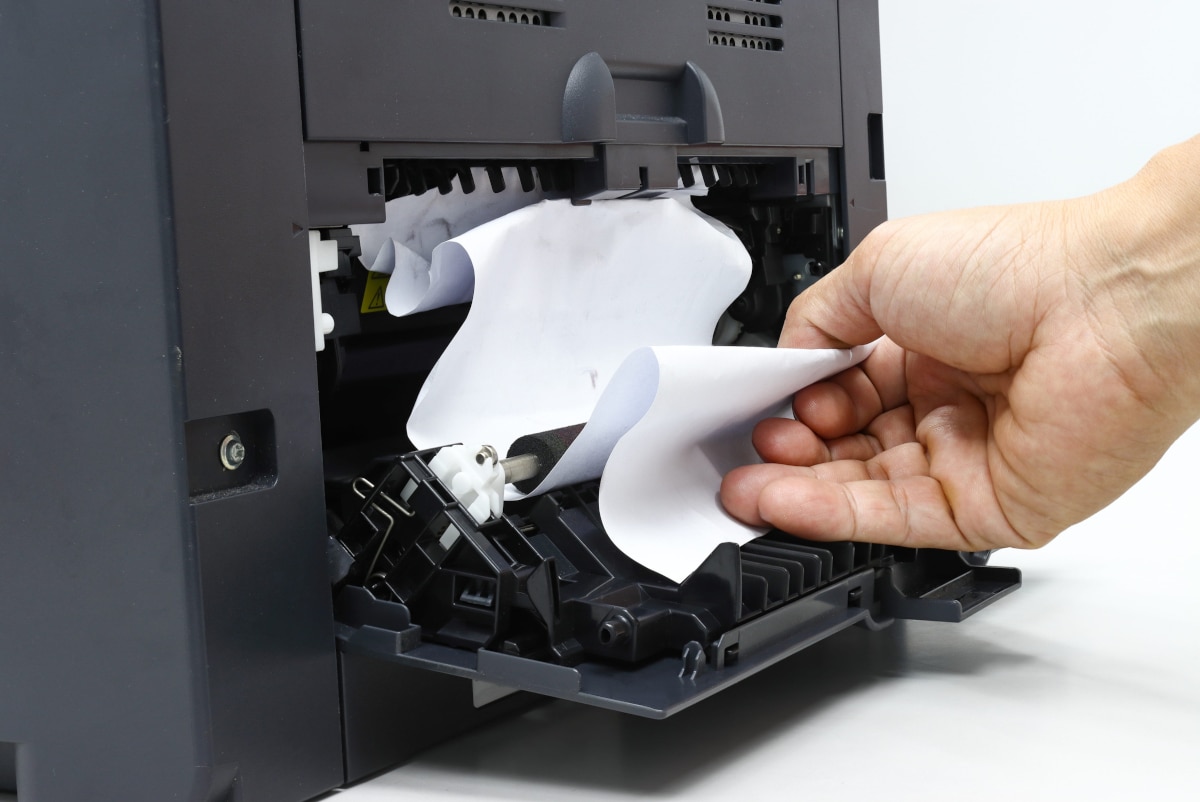
Key Takeaways
- Paper quality and storage cause more jams than any mechanical issue.
- Overfilling the paper tray is one of the most overlooked triggers.
- Worn feed rollers are the most common mechanical cause and require professional service.
- A jam that clears but immediately returns often means fragments are still inside.
- Daily jams are a maintenance problem, not a normal inconvenience.
1. Paper Quality and Condition
Using the wrong type of paper – or paper stored incorrectly – causes more copier jams than any internal component.
Paper absorbs moisture from the air, which causes sheets to curl, warp, and stick together. When multiple sheets feed at once, they buckle in the paper path and jam. Paper outside your machine’s rated paper weights creates the same problem – rollers are calibrated for a specific range, and anything outside it feeds unreliably.
Fix: Use high quality paper rated for your copy machine. Store your paper in a sealed package in a cool, dry location. Fan the pages before loading if the ream has been sitting open.
2. Overfilled Paper Tray
Every paper tray has a maximum fill line, and exceeding it causes jams more often than people expect.
An overfilled tray creates uneven pressure against the pickup roller. Instead of pulling a single sheet of paper cleanly, the roller grabs two or three at once. They overlap in the paper path and the machine stops.
Fix: Load to just below the fill line. Frequent top-offs are less disruptive than clearing jams.
3. Misaligned Paper Guides
Paper guides are the adjustable rails inside the tray that control how each sheet enters the paper path.
Set them too loose and paper feeds in crooked, causing a skew jam. Set them too tight and they pinch the stack, preventing clean pickup. Both produce jams – just in different spots inside the machine.
Fix: Each time you load the tray, slide the paper guides snug against the stack. Reset them whenever you switch paper sizes.
4. Worn or Dirty Feed Rollers
The feed roller is the rubber wheel that pulls paper from the tray into the machine. Over time, rollers wear smooth or collect toner and dust.
A worn or dirty roller slips against the paper rather than gripping it. The sheet hesitates or enters at an angle, and jams cluster near the tray. This is the most common mechanical cause of recurring jams in high-volume machines.
Fix: Clean the rollers as part of routine maintenance. Replacement is inexpensive but should be handled by a technician. If jams keep appearing near the tray, schedule a visit with our Austin copier repair team.
5. Debris in the Paper Path
Paper fragments, staples, and dust build up inside copy machines over time. Even a small torn corner left behind from a previous jam can catch the next sheet passing through.
This is the most common reason jammed paper clears but the problem comes right back. The machine reports no obstruction, but a fragment is still sitting inside.
Metal debris – staples, paper clips – is a more serious version. These can score a drum or damage a roller, turning a simple obstruction into a part replacement.
Fix: When clearing a jam, open every access panel and inspect before reloading. Remove fragments completely – tearing paper inside the machine leaves smaller pieces you won’t see.
6. Driver and Settings Mismatches
If the print driver is set for one type of paper but the tray holds another, the machine will feed incorrectly – or not at all.
A common scenario: the driver is configured for heavy stock, but standard paper is loaded. The machine adjusts its feed pressure and fuser temperature for the heavier sheet, and the actual paper exits wrinkled or jams near the fuser.
Fix: Confirm that driver settings match the correct paper loaded in the tray – size, weight, and type. If your office uses multiple paper types, assign dedicated trays to each.
7. Worn Internal Components
Fuser assemblies, separation pads, and sensors all have service life ratings. When they wear out, jams start appearing in multiple locations – not just near the tray.
If your printer keeps jamming in different spots on the same day, it usually means several components have reached the end of their service interval simultaneously. That pattern is different from a single-cause jam and won’t be solved by adjusting paper or guides.
Fix: Regular maintenance – not just jam clearance – is what catches worn parts early. Our copier repair service handles full inspections and component replacement.
When to Stop Troubleshooting and Call for Service
Clearing a simple obstruction yourself is fine. But a machine that jams more than once or twice a day needs a technician.
Never use tools to probe inside the machine or force jammed paper in the wrong direction. Damage to the drum or rollers from improper clearing routinely costs more than the service call would have.
Conclusion
Most copier jams fall into two categories: paper problems you can fix today, and mechanical wear that needs a technician. Frequency is the clearest signal – an occasional jam is normal, a daily one is not. If maintenance has been deferred on your machine, that’s usually the answer.
FAQ
Why does my copier keep jamming in the same spot?
A recurring jam in the same location usually means a paper fragment is still inside from a previous clearance, or a component in that area of the paper path is worn. Inspect carefully before reloading. If it continues, schedule a service call.
Can the paper itself cause printer paper jams?
Yes – more often than any mechanical issue. Paper that has absorbed moisture, been stored improperly, or is the wrong weight accounts for a large share of day-to-day jams. Using the correct paper and learning how to store your paper properly often resolves the problem entirely.
How often should feed rollers be replaced?
Feed rollers typically last between 100,000 and 200,000 pages, depending on the machine. In a busy office, that can mean replacement every one to two years. A service technician can confirm the right interval for your model.
Could frequent jams mean I need a new copier?
If the machine jams daily despite regular maintenance and has high accumulated page counts, it may be time to evaluate a replacement. Persistent multi-location jams in an older machine often mean several components are nearing the end of life. A copier lease or a used copier can sometimes cost less per month than ongoing repairs on an aging unit.